
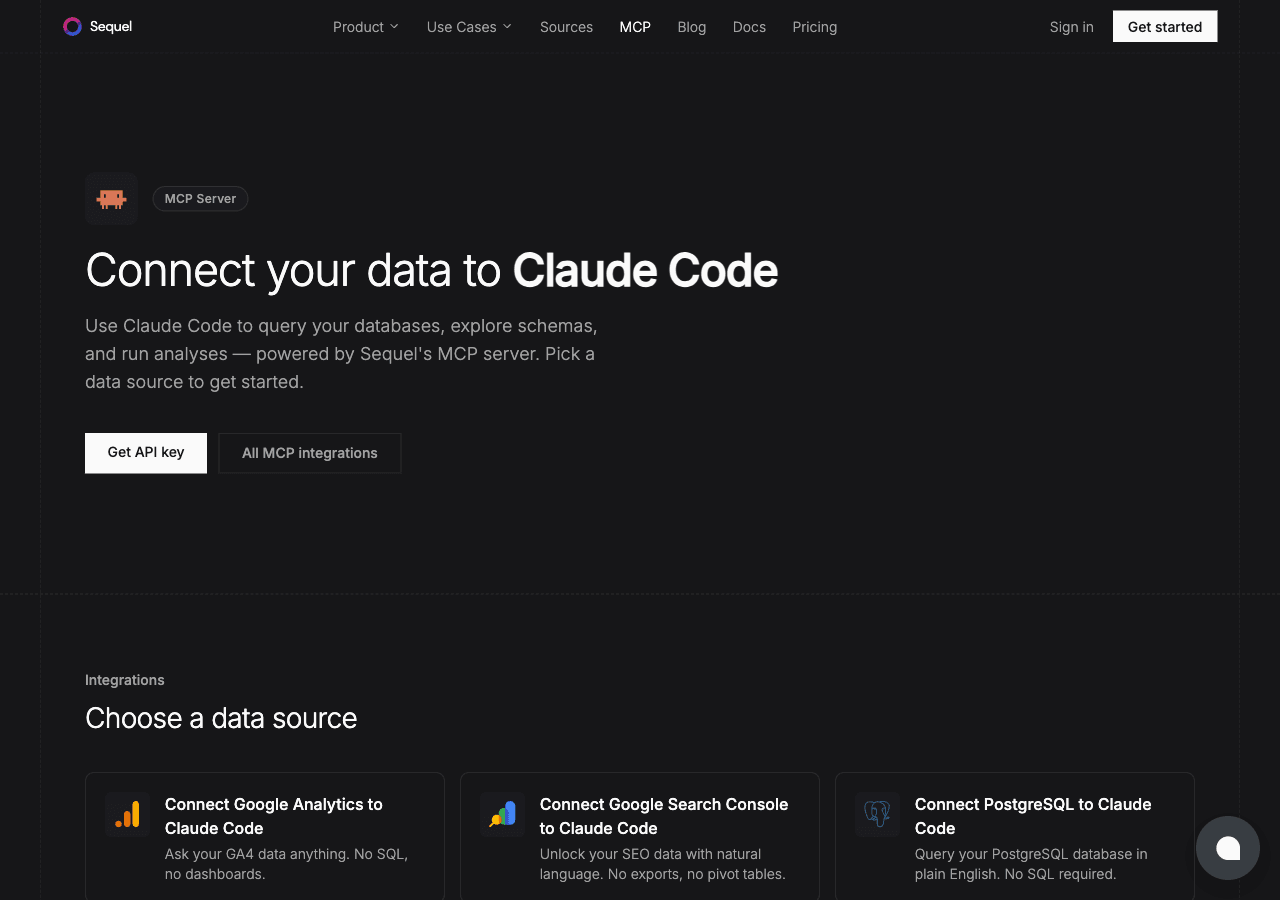
Apollo.io is where sales teams do B2B research and keep their prospect list. Claude Code is Anthropic's AI coding CLI that runs in your terminal. Sequel's MCP server connects the two, so you can search Apollo's database and slice your own saved contacts without loading the Apollo UI.
This guide walks you through the full setup in four steps.
What You'll Accomplish
By the end of this guide, you'll be able to open a terminal, run Claude Code, and ask questions like:
- "Find VPs of Sales at US SaaS companies with 50 to 200 employees."
- "Which of our Apollo contacts were added in the last 30 days?"
- "List our accounts in the Negotiation stage, sorted by last activity."
Claude Code will use Sequel's MCP server to call Apollo's search API and return the results in your terminal.
Prerequisites
- A Sequel account: Sign up free at sequel.sh
- An Apollo.io account with access to Settings → Integrations → API
- An Apollo master API key. The People and Organization search endpoints require master access, so a scoped key will not work for prospecting
- Apollo credits if you plan to search the global database. Searching your own saved contacts and accounts is free
- Claude Code installed: run
npm install -g @anthropic-ai/claude-codeif you haven't already
Step 1: Connect Apollo.io to Sequel
Sign in to sequel.sh and click Data Sources in the left sidebar.
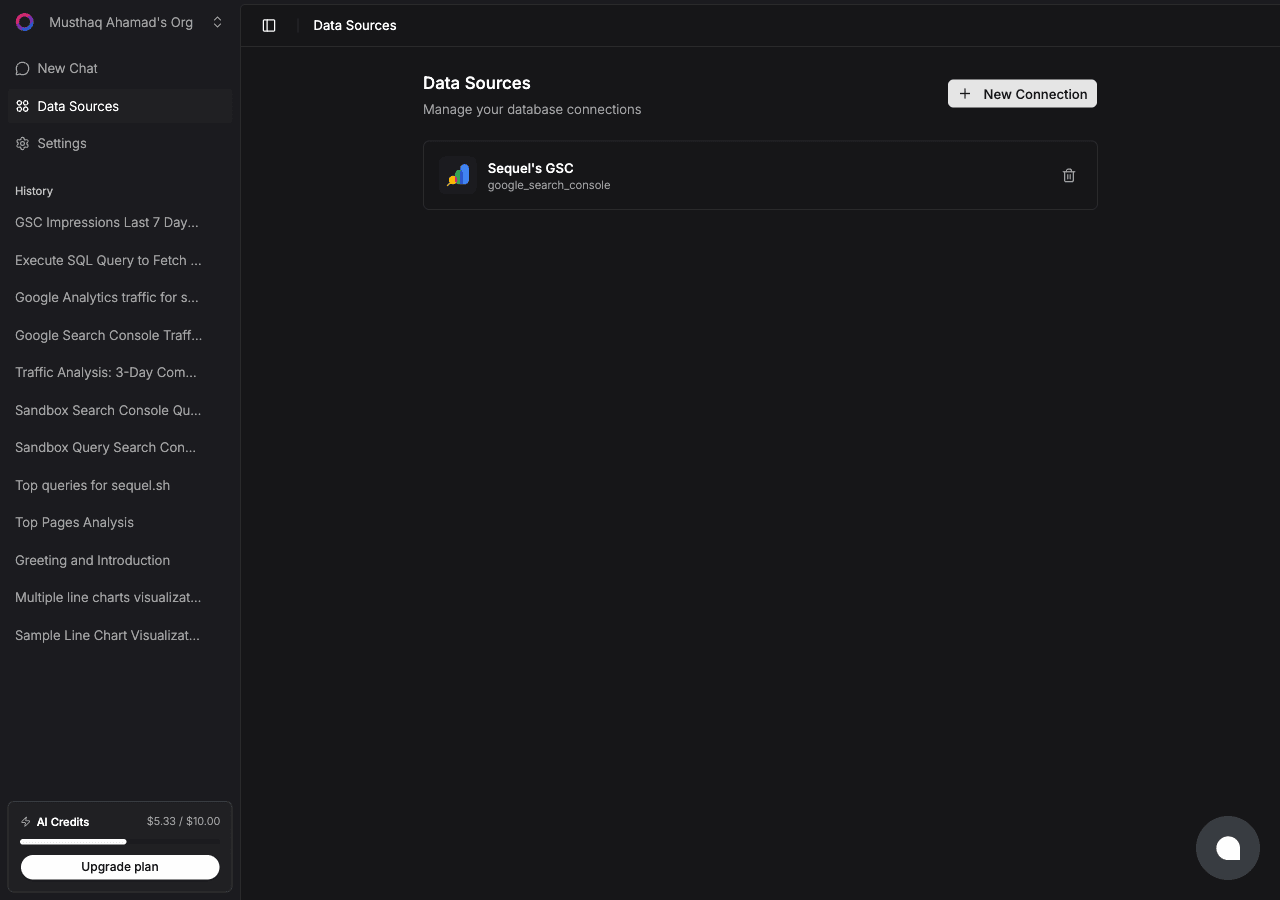
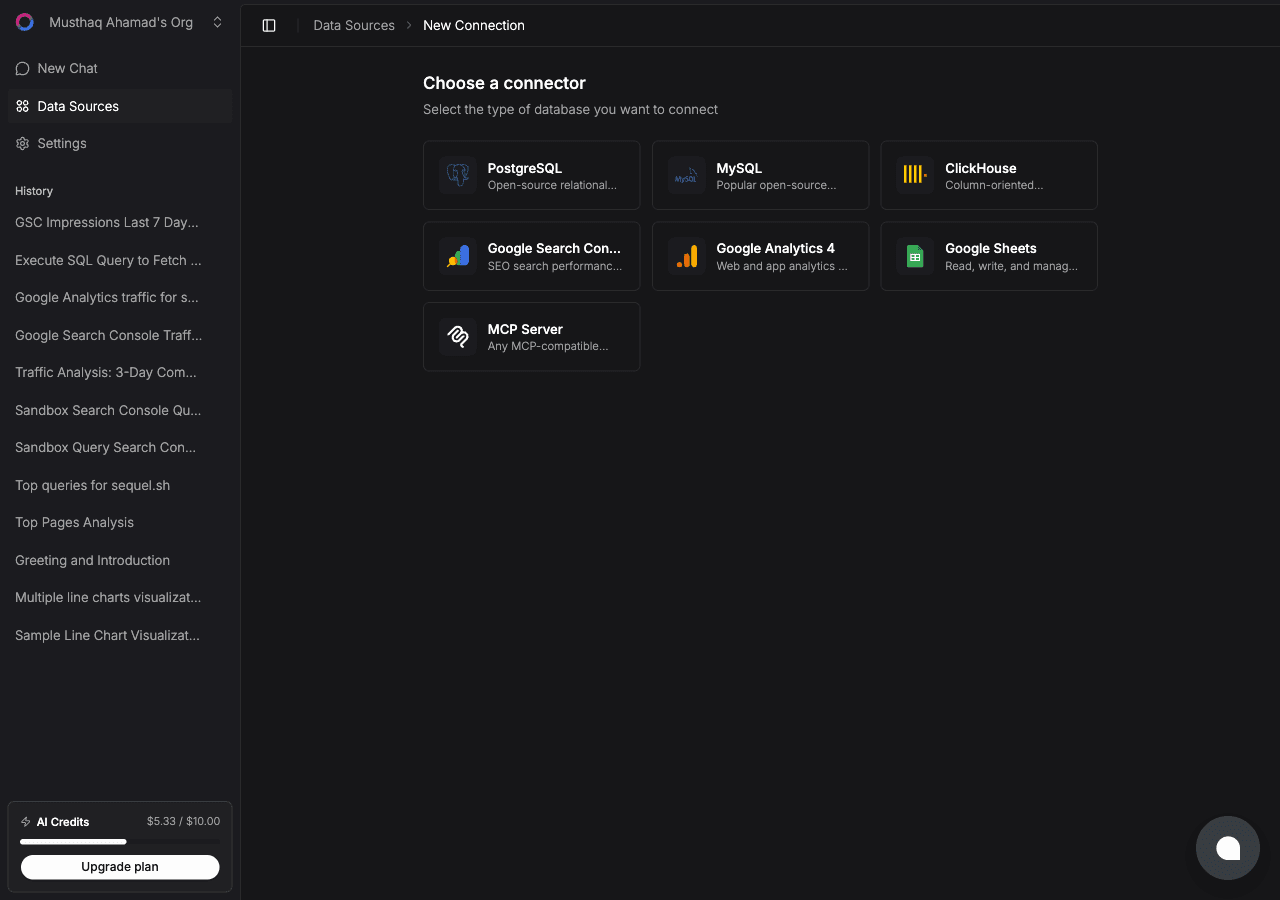
Click New Connection. On the "Choose a connector" page, select Apollo.io.
Now create the key in Apollo. Go to Settings → Integrations → API → Create New Key and enable master access. Copy the key.
Paste it into the API key field in Sequel and give the connection a name like Apollo. Sequel passes it in the X-Api-Key header on every request.
Click Connect. Sequel verifies the key against the Apollo API. A green check means it's live.
Tip: master access is the step people miss. Without it the connection saves fine and your saved contacts work, but every global prospect search comes back empty. If that's what you're seeing, recreate the key with master enabled.
Step 2: Get Your Sequel API Key
Click Settings in the left sidebar, then select API Keys.
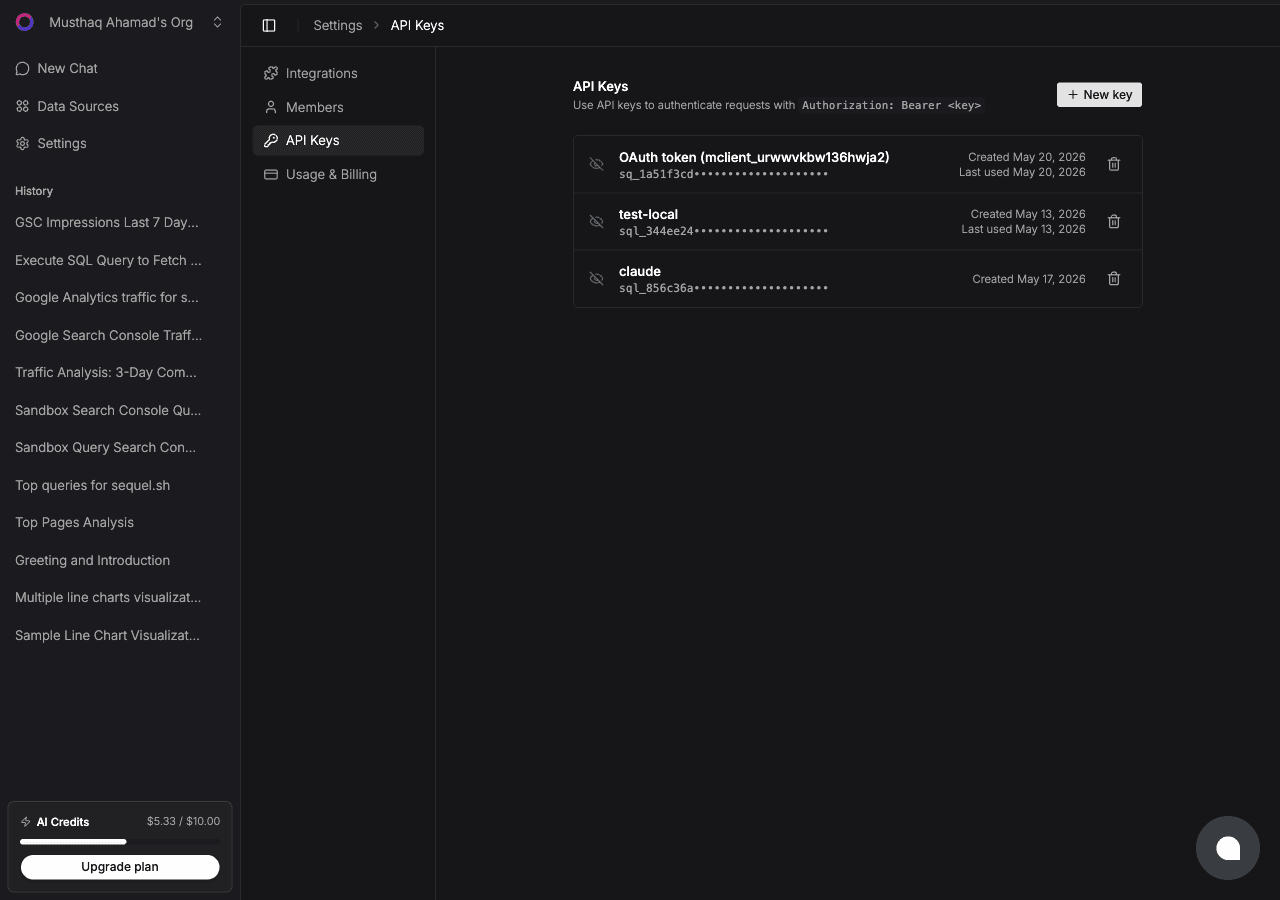
Click New key, name it claude-code-apollo, and copy the key. It starts with sql_. Treat it like a password.
Shortcut: if you have the Sequel CLI installed,
sequel install claude-codecreates the key and writes the Claude Code config for you. That covers Steps 2 and 3 in one command.
Step 3: Configure Claude Code to Use Sequel MCP
In your terminal:
claude mcp add --transport http sequel https://api.sequel.sh/mcp \
  --header "Authorization: Bearer sql_your_api_key"
Replace sql_your_api_key with the key from Step 2. Add --scope user before --transport to install it globally for every project. Verify with:
claude mcp listYou should see sequel in the list of configured MCP servers.
Step 4: Query Your Apollo Data
Start a Claude Code session and try these:
Find VPs and Directors of Engineering at SaaS companies in the US with 50 to 200 employees.
Which of our saved Apollo contacts were added in the last 30 days, and at which accounts?
List our accounts headquartered in Canada, sorted by employee count.
The first query hits Apollo's global database and uses credits. The last two read your own saved records and cost nothing.
What You Can Do Now
- Build a target list without the UI: ask "Find heads of data at fintech companies in the EU with more than 500 employees."
- Audit your own CRM: ask "Which of our Apollo accounts have no contacts saved against them?"
- Territory planning: ask "Break down our saved accounts by country and headcount band."
- Watch pipeline hygiene: ask "Show me accounts with no recorded activity in the last 60 days."
- Cross-source analysis: with Postgres or HubSpot also connected, ask "Match our Apollo accounts against the customers table in Postgres and show which prospects aren't customers yet." That comparison is the part Apollo cannot answer on its own.