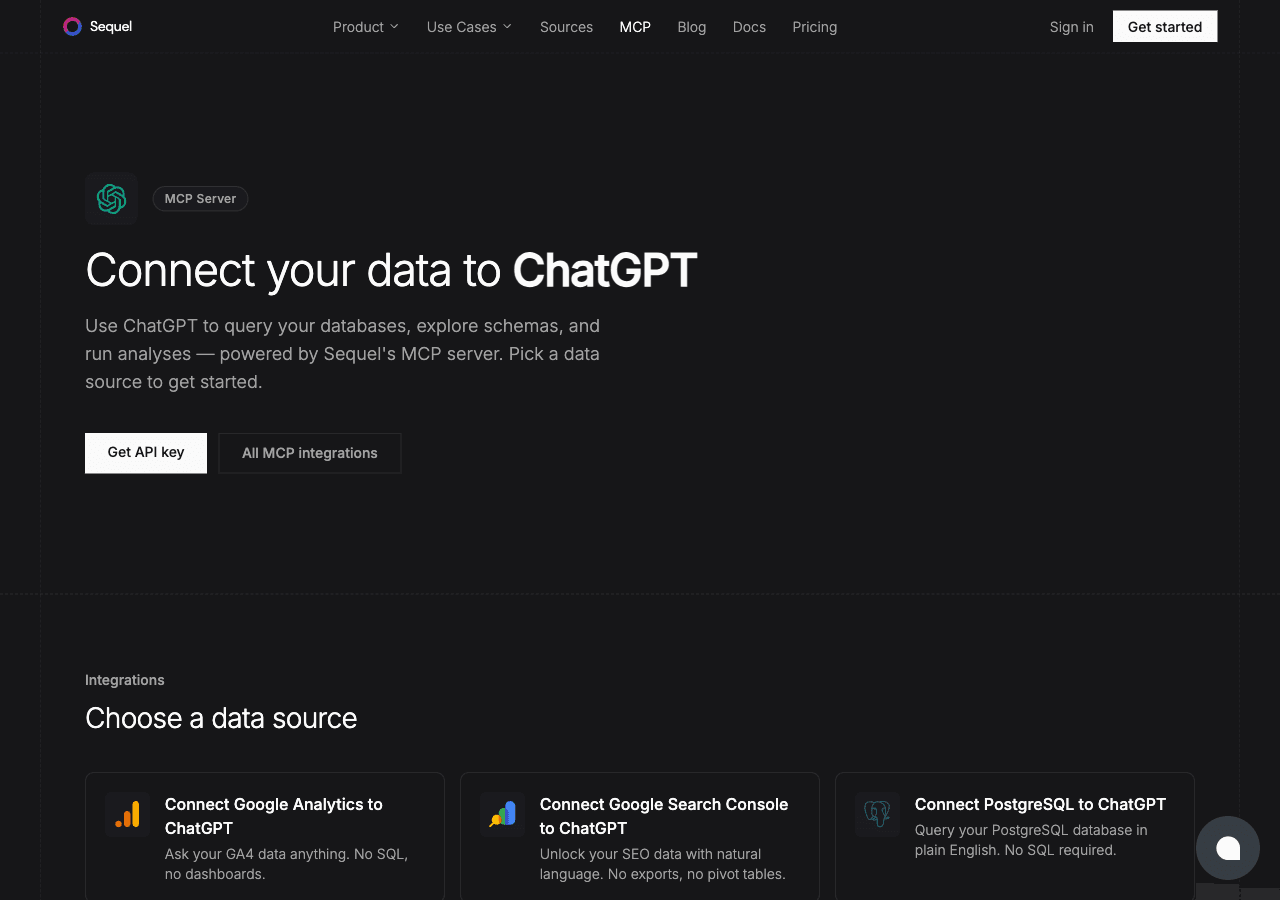
PostgreSQL stores your most important business data. ChatGPT is the conversational AI millions of people use every day. Sequel's MCP server connects the two so you get a natural language interface on top of your PostgreSQL tables. Ask a question in the chat, get a data-backed answer without writing SQL or exporting a spreadsheet.
What You'll Accomplish
After this setup, you'll be able to open a ChatGPT conversation and ask questions like:
"What's the average order value for customers who signed up in the last 90 days?"
"Show me all failed transactions from yesterday."
"Which five cities have the most active users?"
ChatGPT will use Sequel's MCP tools to query your live PostgreSQL database and bring the answer right into the chat.
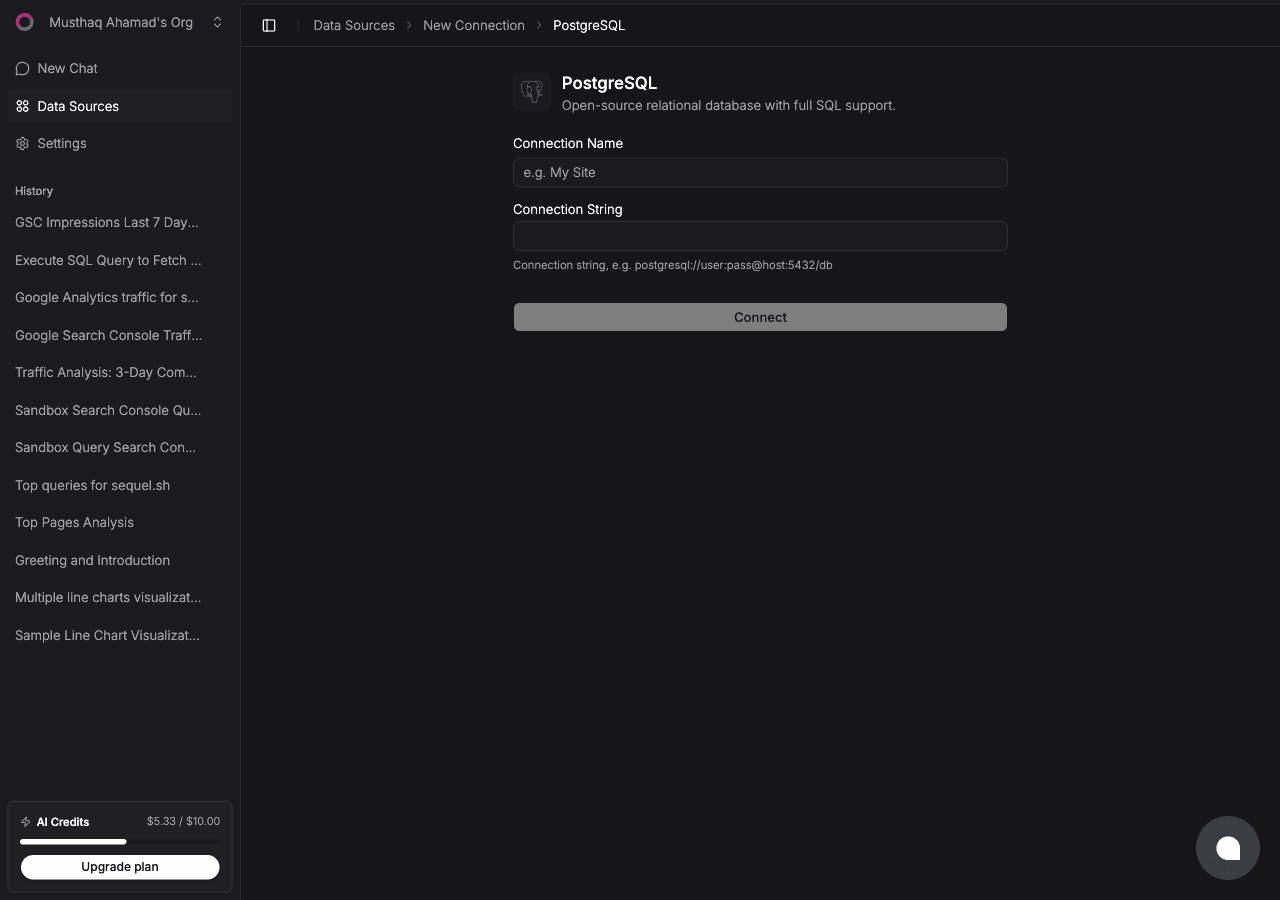
Click Connect. Sequel will verify and save the connection.
Best practice: Use a read-only PostgreSQL user:
CREATE USER sequel_reader WITH PASSWORD 'a_strong_password';GRANT CONNECT ON DATABASE myapp TO sequel_reader;GRANT USAGE ON SCHEMA public TO sequel_reader;GRANT SELECT ON ALL TABLES IN SCHEMA public TO sequel_reader;
Step 2: Add Sequel to ChatGPT
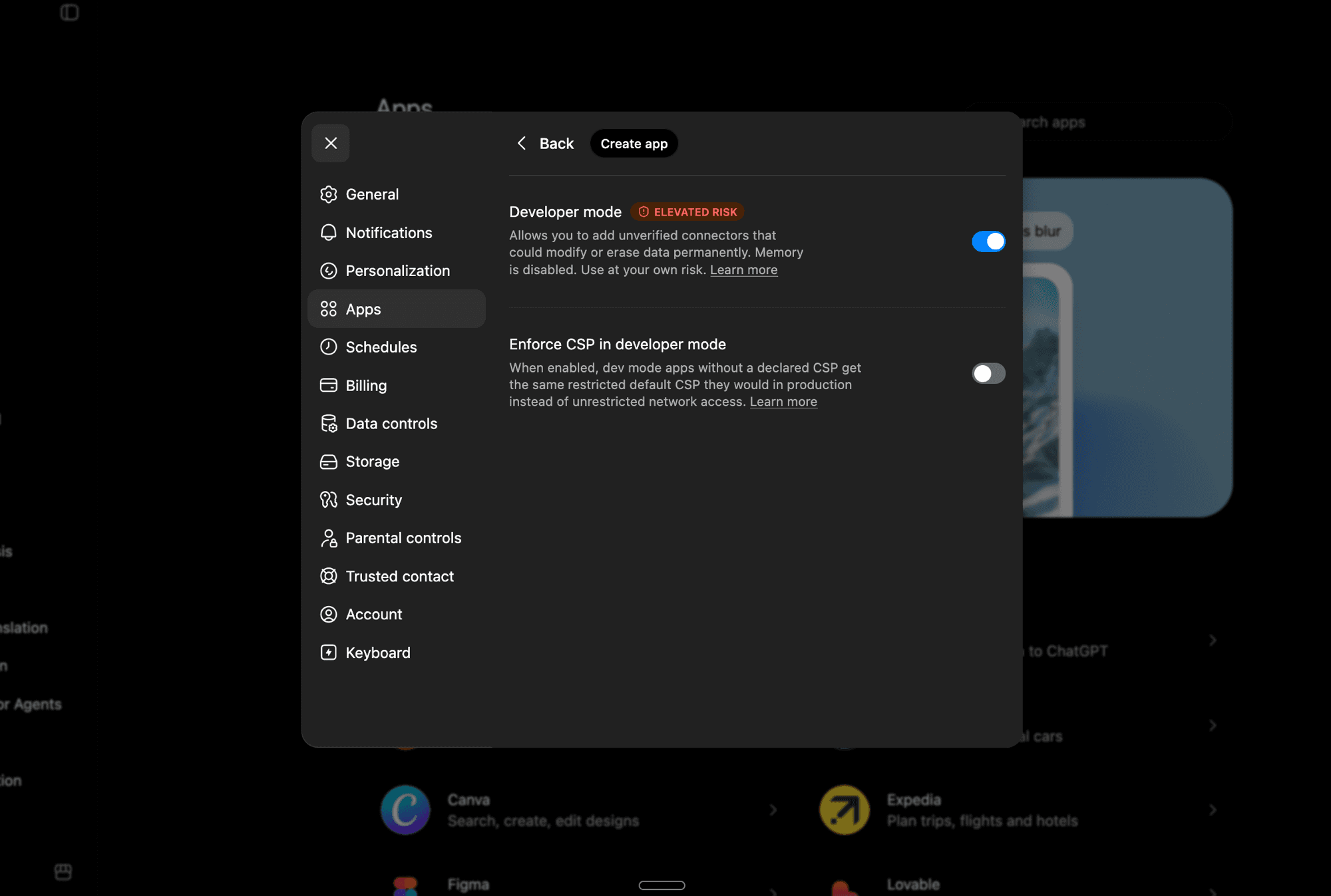
First, enable Developer Mode. Open ChatGPT and go to Settings -> Apps. Click Advanced Settings and toggle Developer Mode on.
Developer Mode lets you add unverified MCP apps. Note that it disables ChatGPT's Memory feature while active.
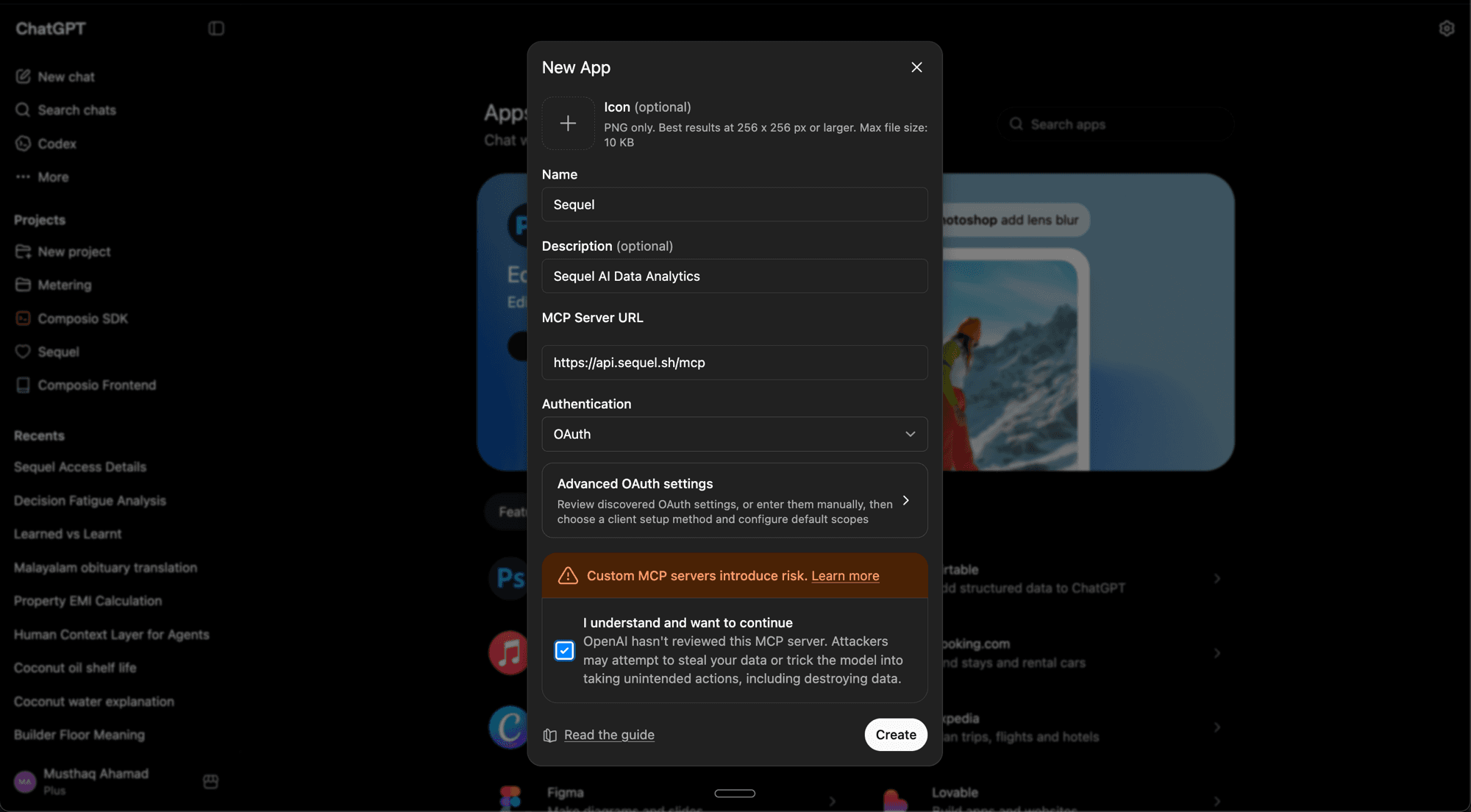
Now go back to Settings -> Apps and click Create App. Fill in the details:
Name:Sequel
Description:Sequel AI Data Analytics (optional)
MCP Server URL:https://api.sequel.sh/mcp
Authentication: OAuth
Check "I understand and want to continue", then click Create.
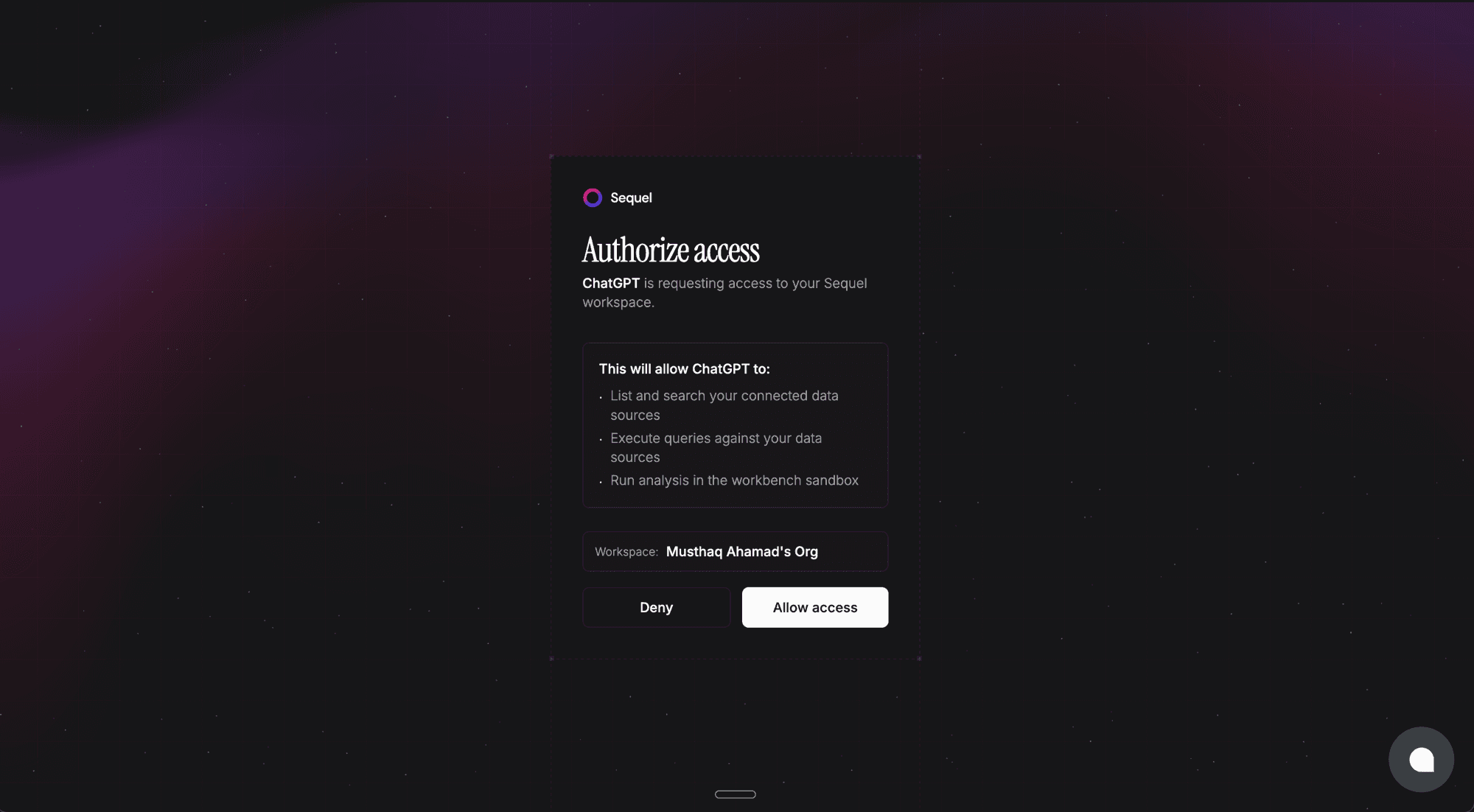
Sequel's authorization page will open in your browser. Review the permissions and click Allow access.
Once authorized, Sequel will appear in your Apps list and you're ready to query.
Step 3: Query Your PostgreSQL Database
Start a new ChatGPT conversation and ask:
Using my PostgreSQL database, how many users registered this month?
What are the top 10 products by total revenue in the last quarter?
Are there any duplicate email addresses in the users table?
ChatGPT will call the Sequel MCP tools, run the SQL against your database, and present the results in the conversation.
What You Can Do Now
Answer ad-hoc data questions without opening a SQL editor. Great for product managers and analysts.
Run data audits: ask "Are there orders with missing shipping addresses?" or "Which users have never logged in?"
Build quick reports: ask ChatGPT to summarize data and format it as a table or bullet points
Explore schemas you don't know: ask "What tables does this database have?"
Generate SQL for reuse: describe what you need, review the query ChatGPT generates, then use it in your codebase or BI tool
Try Sequel
Build your company brain.
Sequel connects the systems your company runs on and learns how your team defines every metric, so any AI agent can answer from it. Free for up to 3 seats, no credit card required.
Does this integration require a paid ChatGPT plan?
Yes. Custom apps in ChatGPT require a Plus, Team, or Enterprise account. Free accounts don't support custom MCP apps.
Do I need Developer Mode enabled in ChatGPT?
Yes. Developer Mode is required to add unverified MCP apps. Enable it in Settings -> Apps -> Advanced Settings. Note that turning on Developer Mode disables ChatGPT's Memory feature while it's active.
How does authentication work? Do I need a Sequel API key?
No API key needed. Sequel uses OAuth, so ChatGPT will open a login flow when you create the app. You sign in to your Sequel account and authorize the connection. No manual token copying required.
What is the difference between this and ChatGPT's built-in data analysis?
ChatGPT's built-in data analysis requires you to upload a file. The Sequel MCP integration queries your live PostgreSQL database, so you always get current data. No export step, no stale numbers.
Can ChatGPT modify data in my PostgreSQL database?
If you use a read-only PostgreSQL user (recommended), writes are blocked at the database level regardless of what ChatGPT requests.
Does this work with cloud-hosted PostgreSQL?
Yes. AWS RDS, Supabase, Neon, Railway, DigitalOcean Managed PostgreSQL, and any other PostgreSQL-compatible host all work as long as Sequel can reach the database over the network.