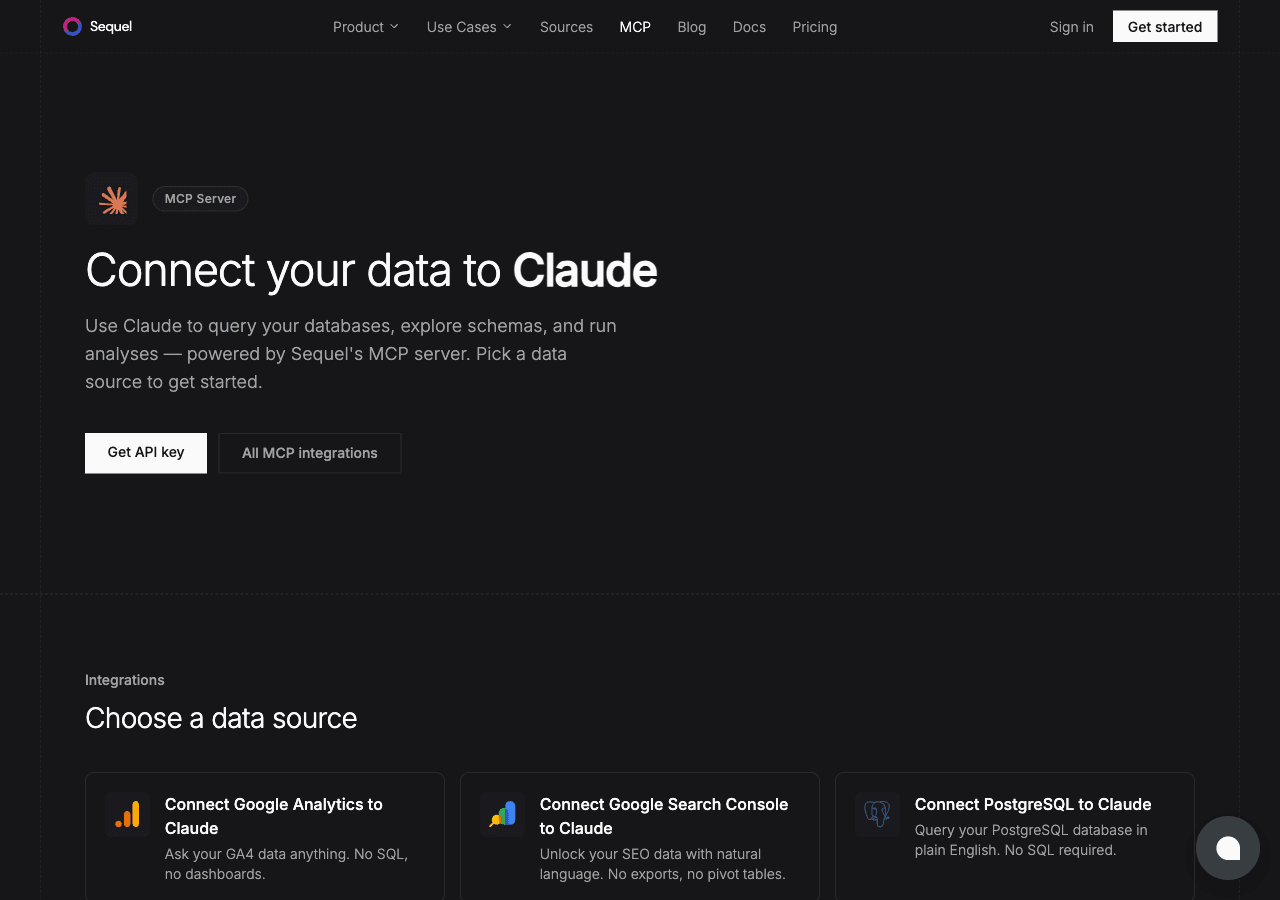
Claude Desktop brings Anthropic's AI directly to your Mac or Windows machine as a native app. When you connect it to your PostgreSQL database through Sequel's MCP server, the chat window becomes a live interface into your data. Type a question, get an answer backed by real data.
This guide takes you from zero to querying your PostgreSQL database inside Claude Desktop in about ten minutes.
What You'll Accomplish
After completing this setup, you'll be able to ask questions like these directly in Claude Desktop:
"What's our monthly active user count for the last 6 months?"
"Show me all orders that were refunded this week."
"Which product categories have the highest average order value?"
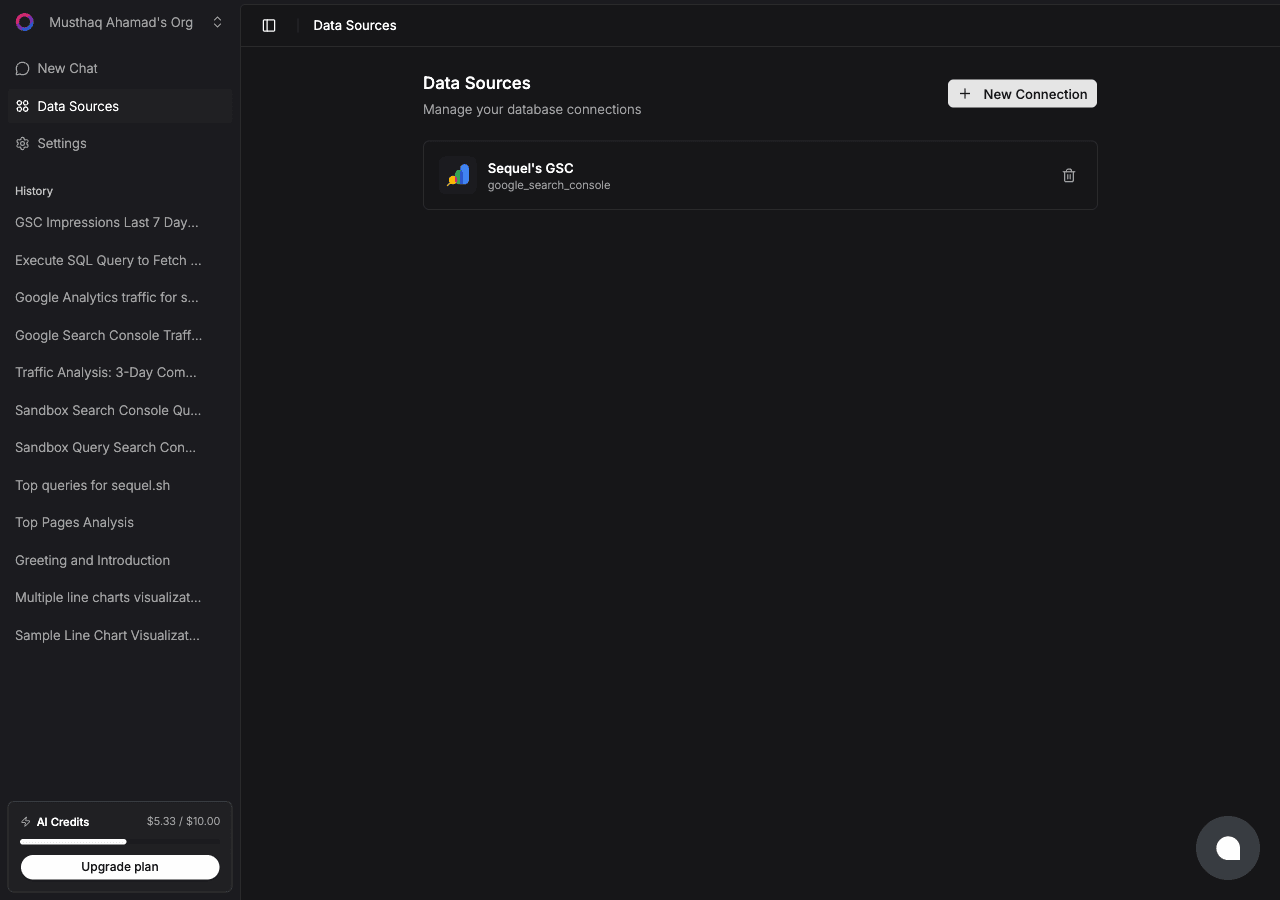
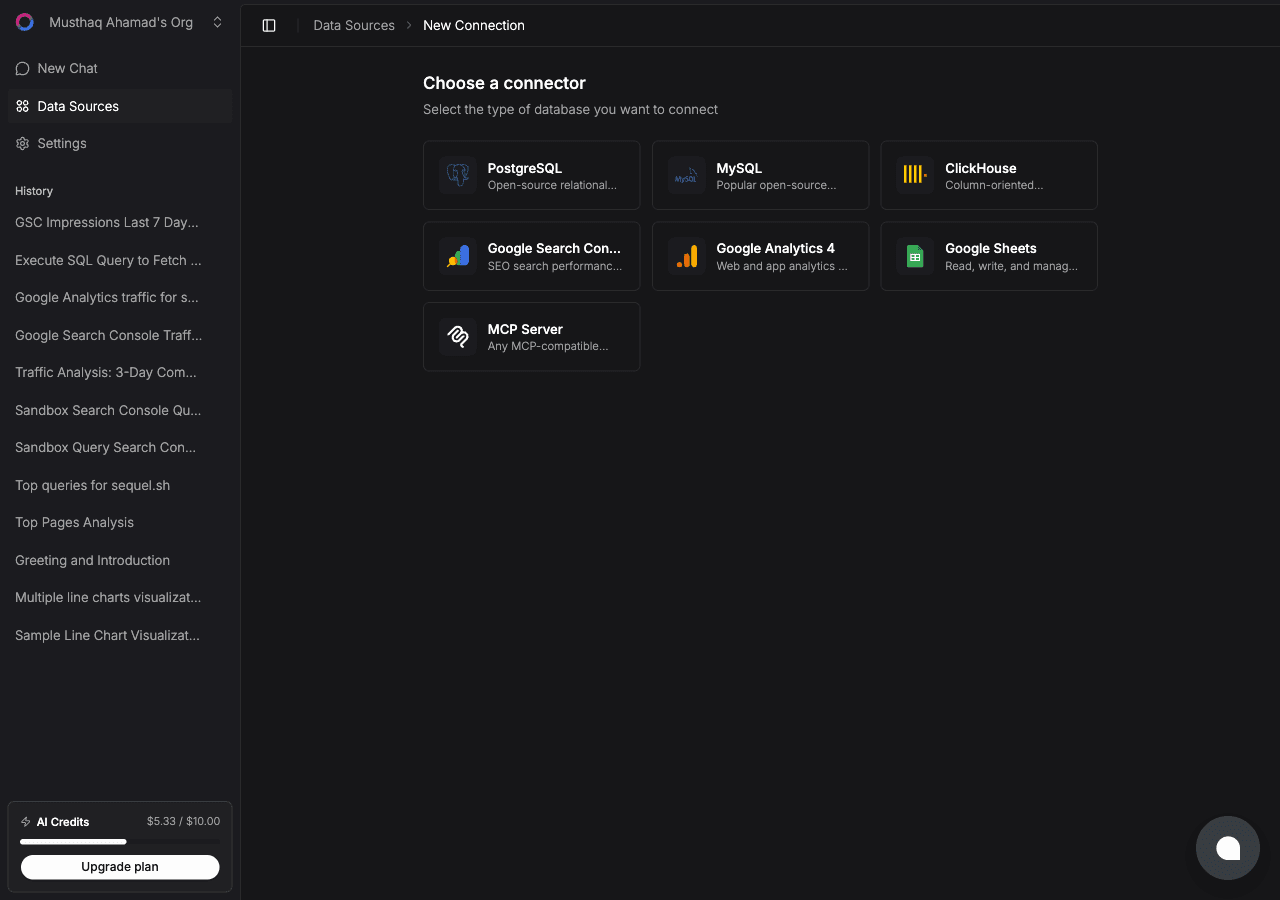
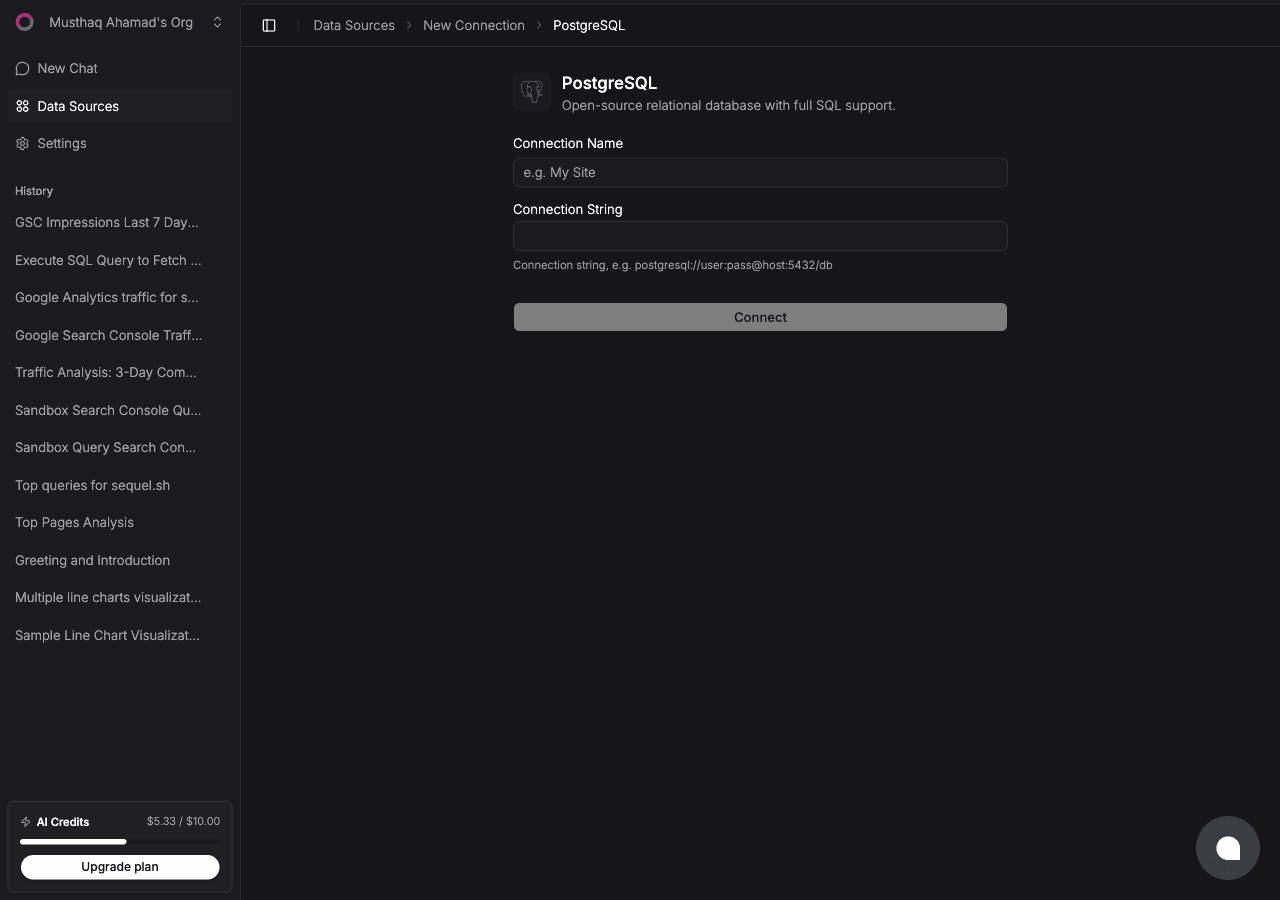
Click Connect. Sequel verifies the credentials and saves the connection.
Recommended: Create a dedicated read-only user before connecting:
CREATE USER sequel_reader WITH PASSWORD 'strong_password_here';GRANT CONNECT ON DATABASE myapp TO sequel_reader;GRANT USAGE ON SCHEMA public TO sequel_reader;GRANT SELECT ON ALL TABLES IN SCHEMA public TO sequel_reader;
Your connection string becomes: postgresql://sequel_reader:strong_password_here@host:5432/myapp
Step 2: Get Your Sequel API Key
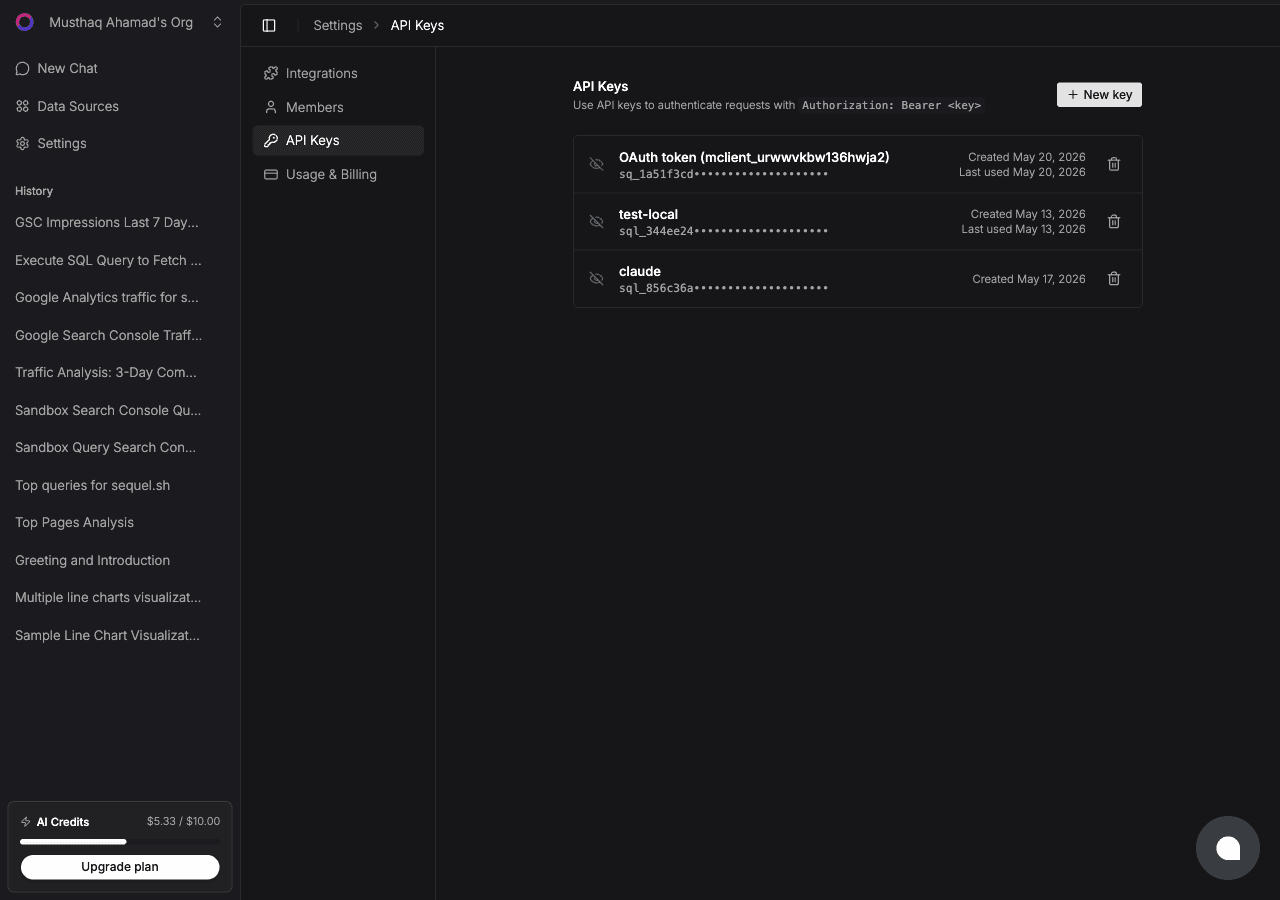
Click Settings in the left sidebar, then select API Keys from the settings navigation.
Click New key, name it claude-desktop, and copy the key. It starts with sql_.
Replace sql_your_api_key with the key from Step 2. Restart Claude Desktop after saving. MCP servers are loaded at startup.
To confirm Sequel loaded correctly, ask Claude: "What tools do you have access to?" You should see Sequel's tools listed.
Step 4: Query Your PostgreSQL Database
Start a new conversation in Claude Desktop:
How many new users registered in the past 30 days?
List the top 10 products by total revenue this quarter.
Are there any customers who placed orders but never completed a purchase?
Claude Desktop will call the Sequel MCP tools behind the scenes, run the query against your PostgreSQL database, and return the answer in the conversation.
What You Can Do Now
Answer business questions on the fly: no need to open a SQL editor or ask an engineer
Explore your schema: ask "What tables are in this database?" or "What columns does the orders table have?"
Spot anomalies: ask "Are there any unusually large orders this week?" or "Show me users with duplicate accounts"
Draft queries for your team: describe the report you need, review the SQL Claude generates, then hand it off
Try Sequel
Build your company brain.
Sequel connects the systems your company runs on and learns how your team defines every metric, so any AI agent can answer from it. Free for up to 3 seats, no credit card required.
What is MCP and why does Claude Desktop need it to access PostgreSQL?
MCP (Model Context Protocol) is a standard for connecting AI assistants to external data sources. Without MCP, Claude Desktop has no way to reach your database. It only works with text you paste into the chat. With the Sequel MCP server configured, Claude can query your PostgreSQL database directly every time you ask.
Will Anthropic be able to see my PostgreSQL data?
No. The MCP connection runs between Claude Desktop on your machine and Sequel's API. Sequel translates your natural language into SQL, queries your database, and returns results to Claude. Anthropic does not receive your raw database contents beyond what Claude uses in the conversation context.
Does this work on both Mac and Windows?
Yes. The Claude Desktop config file is at "~/Library/Application Support/Claude/claude_desktop_config.json" on Mac and "%APPDATA%\Claude\claude_desktop_config.json" on Windows. The JSON config format is the same on both platforms.
What if Claude Desktop already has other MCP servers configured?
The "mcpServers" config key is an object, so you can add "sequel" as a new key alongside any existing MCP server entries. Just make sure the JSON is valid after editing.
Can I use this to connect multiple PostgreSQL databases?
Yes. Add multiple data sources in Sequel, each with a different name. The Sequel MCP server will list all your connections and Claude can query any of them when you specify which one you mean.
My PostgreSQL database is behind a firewall. Will this work?
Sequel's cloud MCP server needs to be able to reach your database host. For databases behind firewalls, you'll need to whitelist Sequel's IPs or expose the port. For purely local development databases, consider a tunnel or use a cloud-hosted dev database instead.