
Dodo Payments is the merchant of record behind a lot of indie and cross-border SaaS, which means it holds the real revenue picture including tax handling. Grok Bot is xAI's bot builder, an agent that keeps context and reaches your tools through plugins. Connect Dodo through Sequel and your bot can answer revenue questions without anyone opening the dashboard.
TL;DR
| What you're connecting | A Dodo Payments business to Grok Bot |
| Setup time | About 5 minutes |
| Setup method | One chat message. Grok Bot has no MCP config file |
| Auth to Dodo | API key created with write access turned off |
| Auth to the bot | OAuth to Sequel. No key in the chat |
| Access level | Read-only |
| Environments | live and test, as separate connections |
What You'll Accomplish
Once this is wired up, you can ask your bot:
- "What's total revenue this month, by product and by country?"
- "Which subscriptions are due to renew in the next 7 days?"
- "How many payments failed last week, and for which products?"
Prerequisites
- A Sequel account: sign up free at sequel.sh
- A Dodo Payments business with dashboard access
- An API key created with write access unchecked
- A Grok account with a bot you can send messages to
Step 1: Connect Dodo Payments to Sequel
In the Dodo dashboard, go to Developer → API Keys → Add API Key. Name it and leave Enable write access unchecked. Copy the key, Dodo shows it once.
Then sign in to sequel.sh, open Data Sources, click New Connection, and choose Dodo Payments.
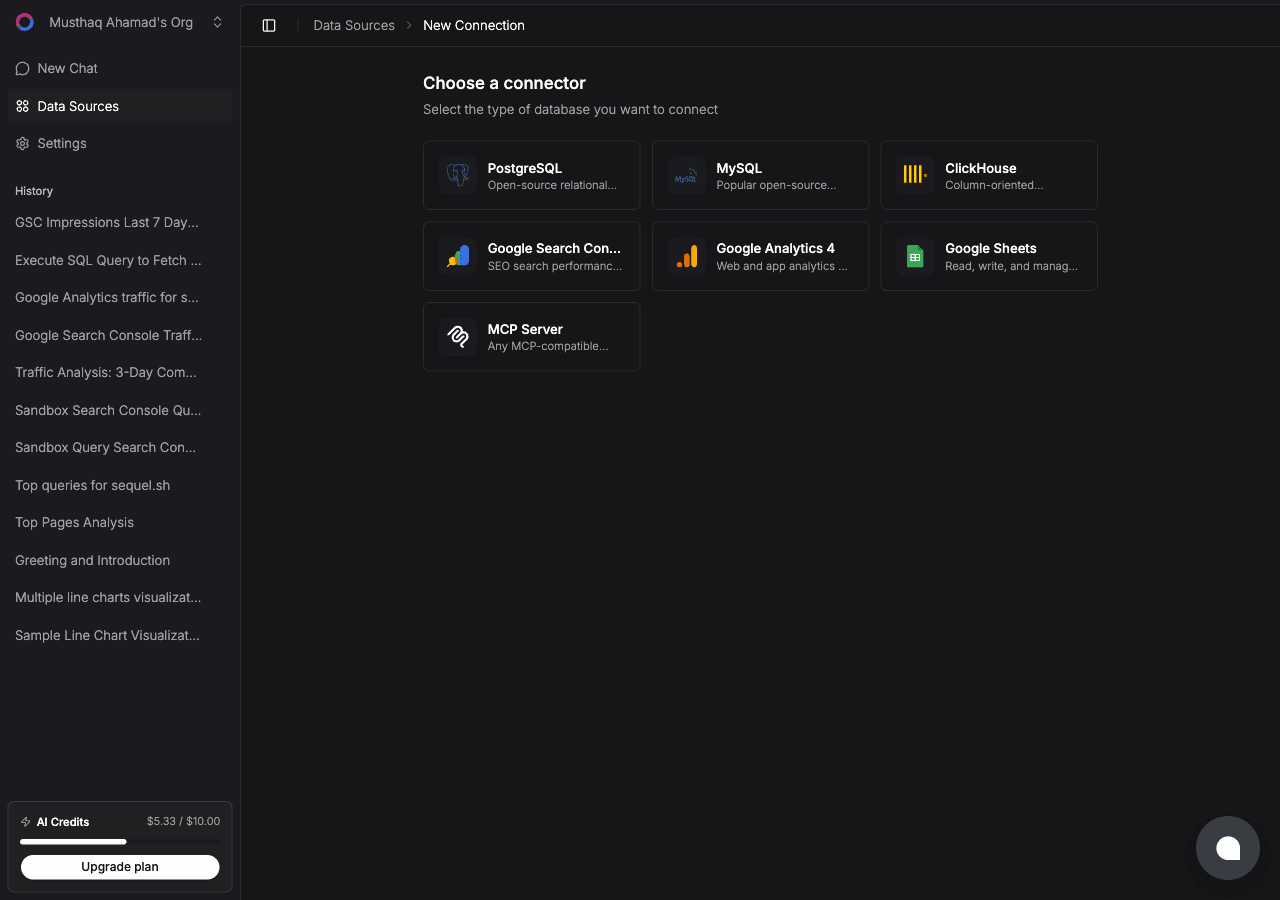
| Field | What to enter |
|---|---|
| API key | The key you copied from Dodo |
| Environment | live for your real account, test if the key came from test mode |
Sequel verifies the key and names the connection after your brand.
Step 2: Add Sequel to Grok Bot
Grok Bot has no MCP config file and no settings form to fill in. You add a server by asking the bot.
Open a chat with your bot and send this:
Add a custom MCP server called sequel at https://api.sequel.sh/mcp
Say custom server explicitly. Leave those words out and the bot searches the plugin marketplace instead of registering your endpoint.
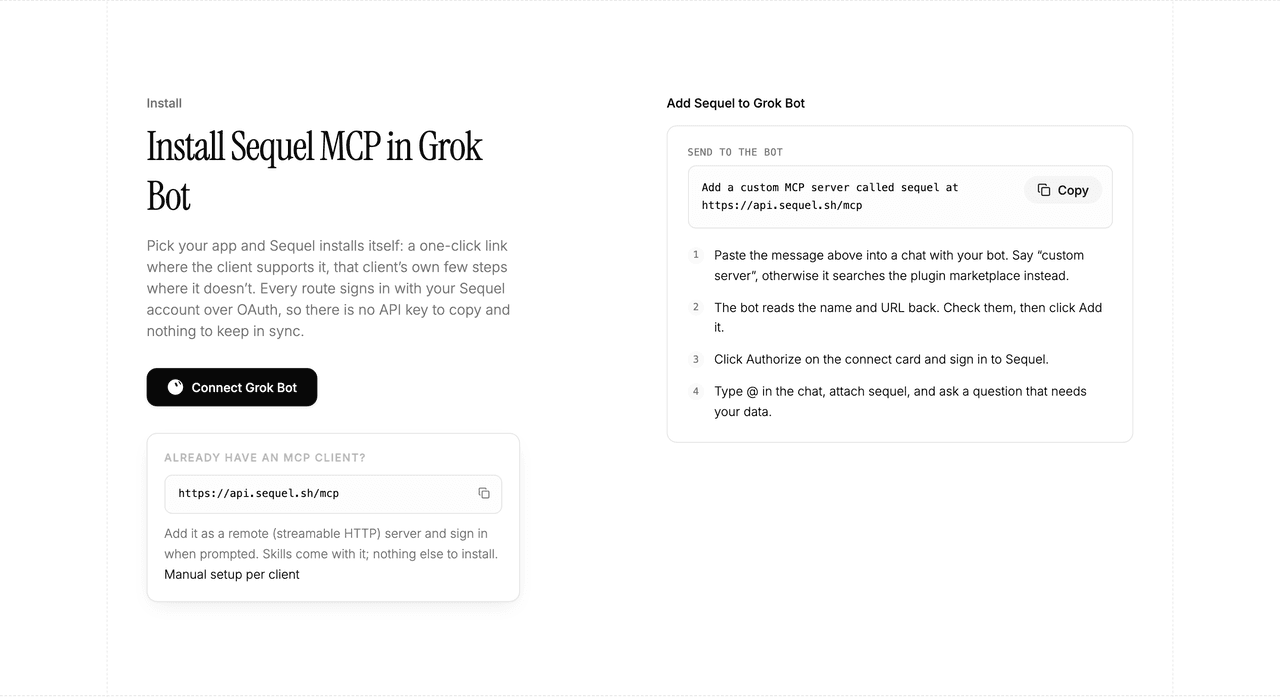
The bot reads the name and URL back to you. Check both, confirm, and it posts a connect card in the chat. Click Authorize, sign in to Sequel, and approve access. The OAuth token stays on the connector side, so there is no API key to copy and nothing to keep in sync.
To confirm it registered, open Settings → Plugins → Yours. Every server on your account is listed there, including the ones you added by chat.
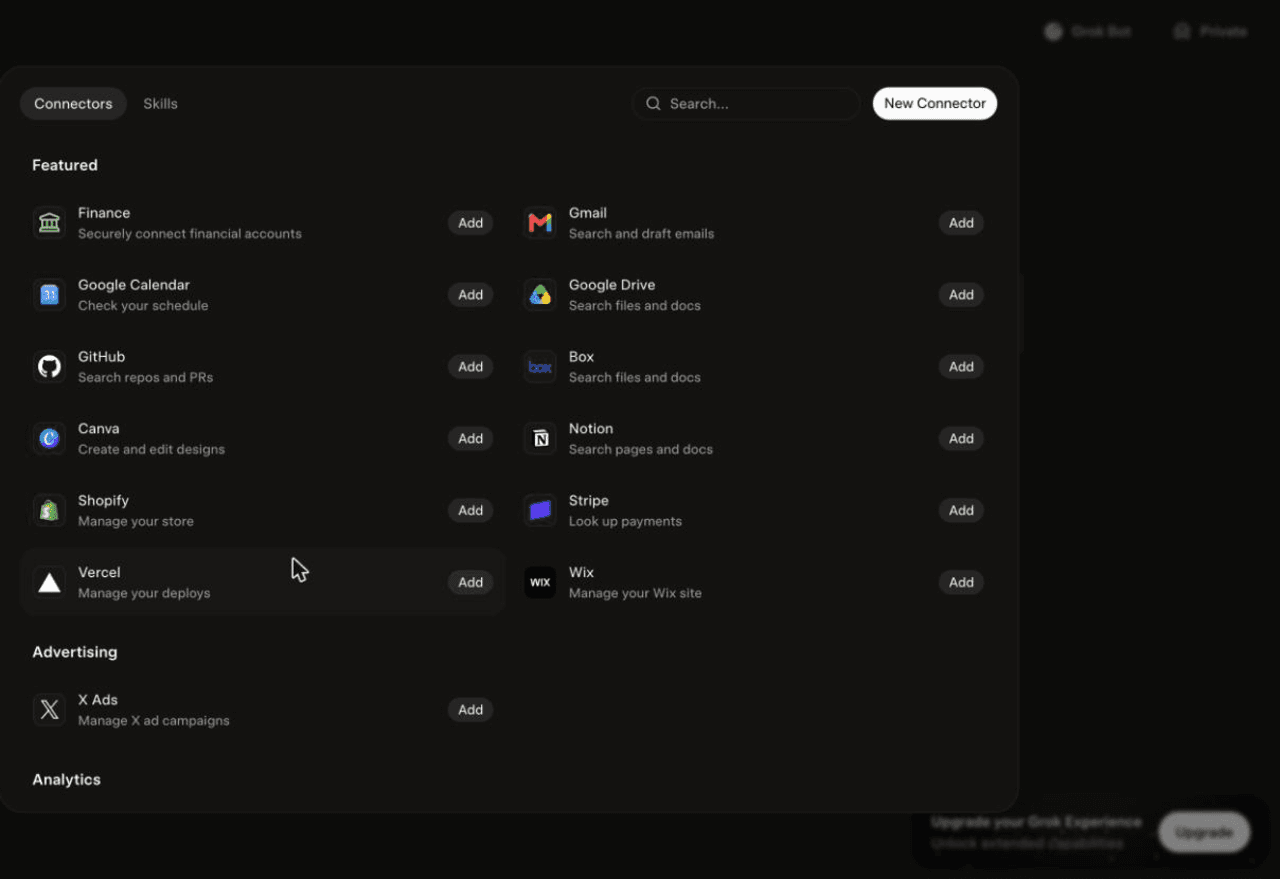
Then attach it to a task: type @ in the chat and pick sequel.
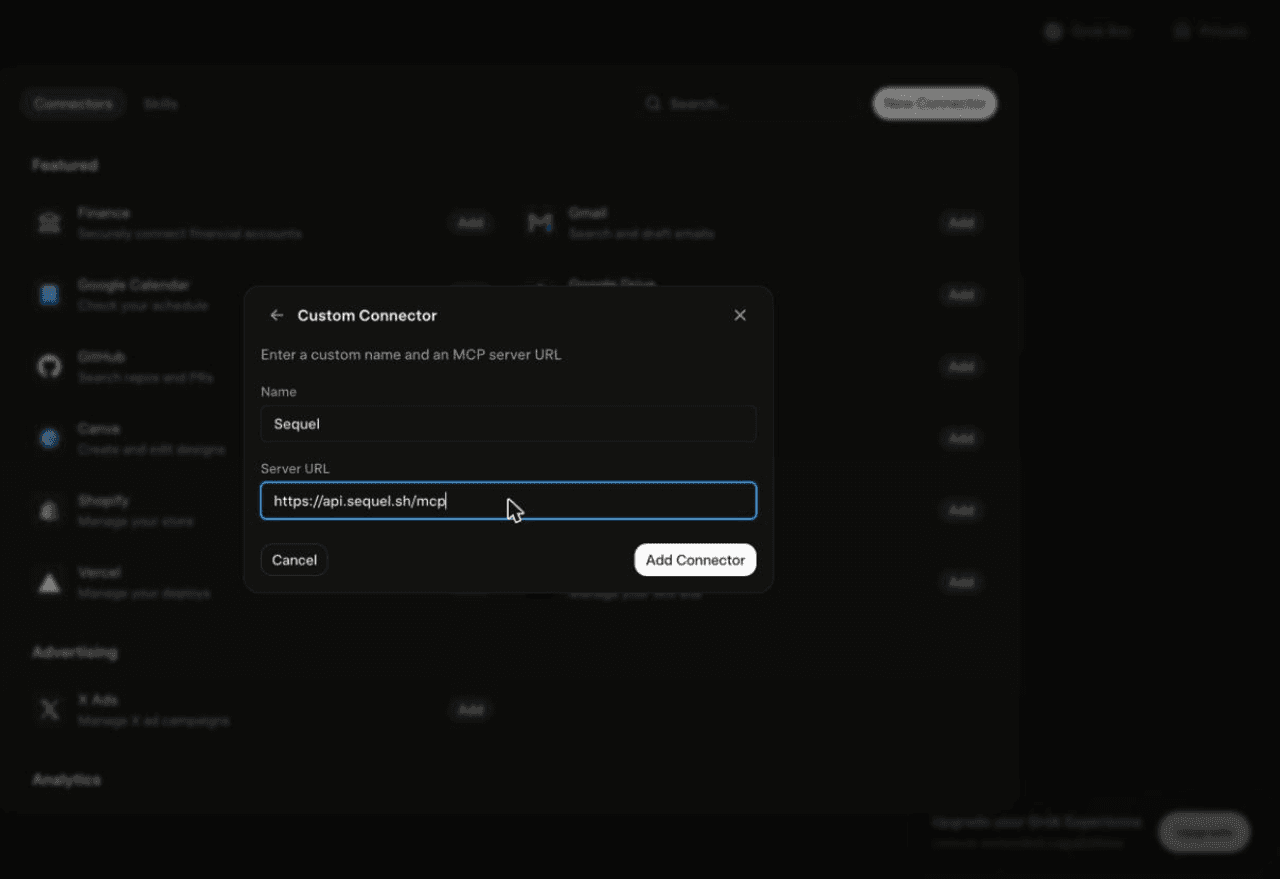
Using Grok chat rather than a bot? The steps do not carry over. On grok.com, open Plugins → New Connector → Custom, set the name to
Sequeland the Server URL tohttps://api.sequel.sh/mcp, click Add Connector, and sign in.
Step 3: Ask Grok Bot About Your Dodo Payments Data
Attach @sequel and ask:
What's total revenue this month, broken down by product and country?
Which subscriptions renew in the next 7 days, and what is their combined value?
How many payments failed last week, and which products were affected?
What You Can Do Now
- Revenue answers without the dashboard: by product, by country, by period, in one message.
- Renewal visibility: the bot runs unattended, so an upcoming-renewals list arrives weekly.
- Failed payment follow-up: catch the drop in collected revenue before the month closes.
- Refund monitoring: spot the product driving refunds early.
- Cross-source joins: match Dodo customers against your database or product analytics to see who churned and why.
Troubleshooting
| Symptom | Likely fix |
|---|---|
| The bot searched the marketplace instead of adding the server | Resend the message with the words "custom server" in it. |
| The server is not listed under Settings → Plugins → Yours | The registration did not complete. Resend the message and confirm the name and URL when the bot reads them back. |
| The bot answers without touching your data | You did not attach it. Type @ in the chat and pick sequel before asking. |
| The key is rejected | A test key will not authenticate against live, or vice versa. Check the Environment field. |
| A write fails | Expected. The key was created without write access and the connector is read-only. |
| Numbers look wrong | Confirm you are querying the right environment. Test and live data are entirely separate. |