
Stripe's dashboard answers "what happened to this customer" well and "what happened to revenue this quarter, by plan and country" badly. Grok Bot is xAI's bot builder, an agent that keeps context and reaches your tools through plugins. Connect Stripe through Sequel and the bot does the aggregation for you.
TL;DR
| What you're connecting | A Stripe account to Grok Bot |
| Setup time | About 5 minutes |
| Setup method | One chat message. Grok Bot has no MCP config file |
| Auth to Stripe | Restricted Key (rk_) scoped read-only |
| Auth to the bot | OAuth to Sequel. No key in the chat |
| Access level | List, get, and search only. No writes |
| Test and live | Separate connections, kept isolated |
What You'll Accomplish
Once this is wired up, you can ask your bot:
- "What's our MRR trend for the last 6 months, by plan?"
- "Which customers had a failed payment in the last 14 days and have not retried?"
- "What's the refund rate by product this quarter compared to last?"
Prerequisites
- A Sequel account: sign up free at sequel.sh
- A Stripe account with Dashboard access
- A Restricted Key scoped read-only to the resources you want
- A Grok account with a bot you can send messages to
Step 1: Connect Stripe to Sequel
In Stripe, go to Developers → API keys → Create restricted key. Set the resources you want Sequel to read to Read, leave everything else None, and create the key.
| Resource | Permission |
|---|---|
| Customers, Charges, Invoices, Subscriptions | Read |
| Products, Prices, Refunds, Disputes | Read |
| Payouts, Balance | Read |
| Everything else | None |
Then sign in to sequel.sh, open Data Sources, click New Connection, and choose Stripe.
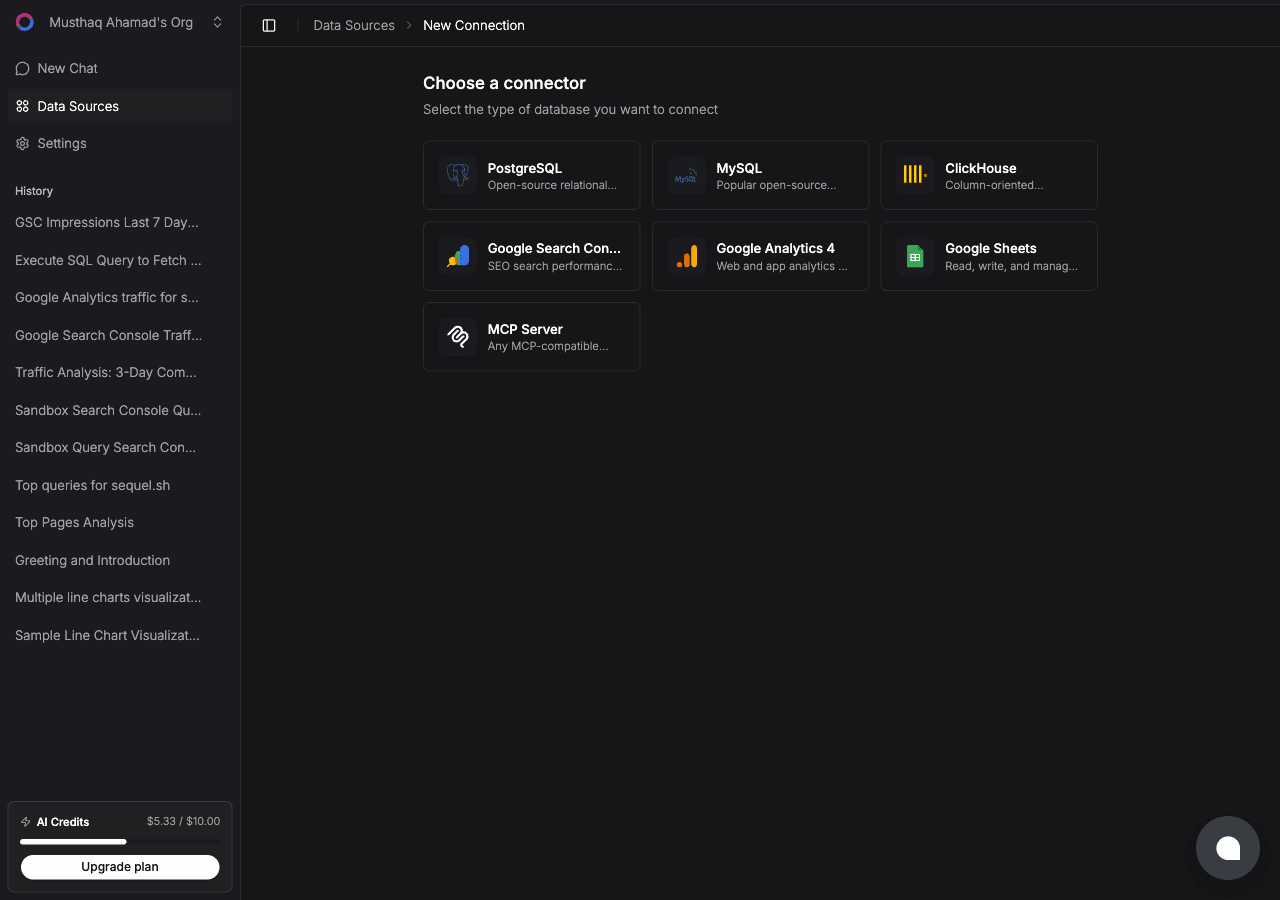
Paste the key into the API key field. Sequel verifies it against the Stripe API and the connection goes live.
Want both test and live data? Create two connections, one with an
rk_test_…key and one withrk_live_…. Sequel keeps them isolated.
Step 2: Add Sequel to Grok Bot
Grok Bot has no MCP config file and no settings form to fill in. You add a server by asking the bot.
Open a chat with your bot and send this:
Add a custom MCP server called sequel at https://api.sequel.sh/mcp
Say custom server explicitly. Leave those words out and the bot searches the plugin marketplace instead of registering your endpoint.
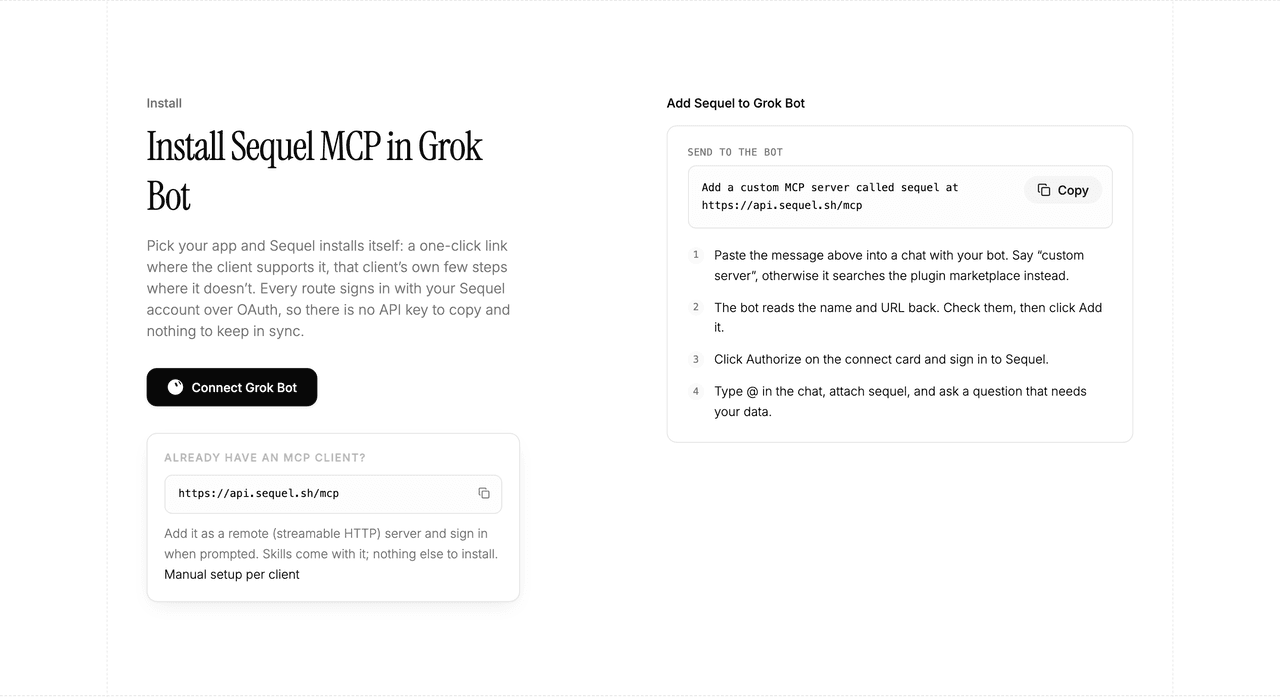
The bot reads the name and URL back to you. Check both, confirm, and it posts a connect card in the chat. Click Authorize, sign in to Sequel, and approve access. The OAuth token stays on the connector side, so there is no API key to copy and nothing to keep in sync.
To confirm it registered, open Settings → Plugins → Yours. Every server on your account is listed there, including the ones you added by chat.
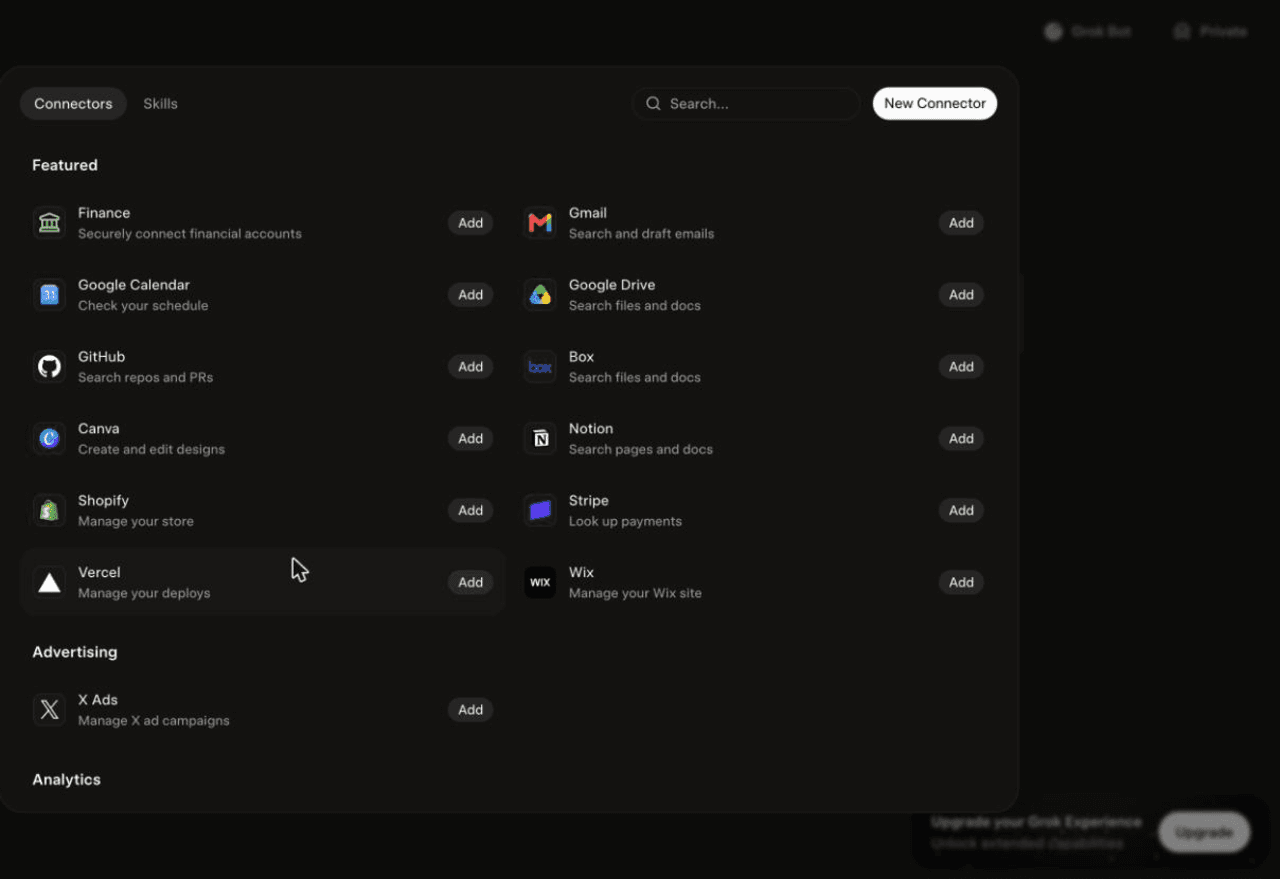
Then attach it to a task: type @ in the chat and pick sequel.
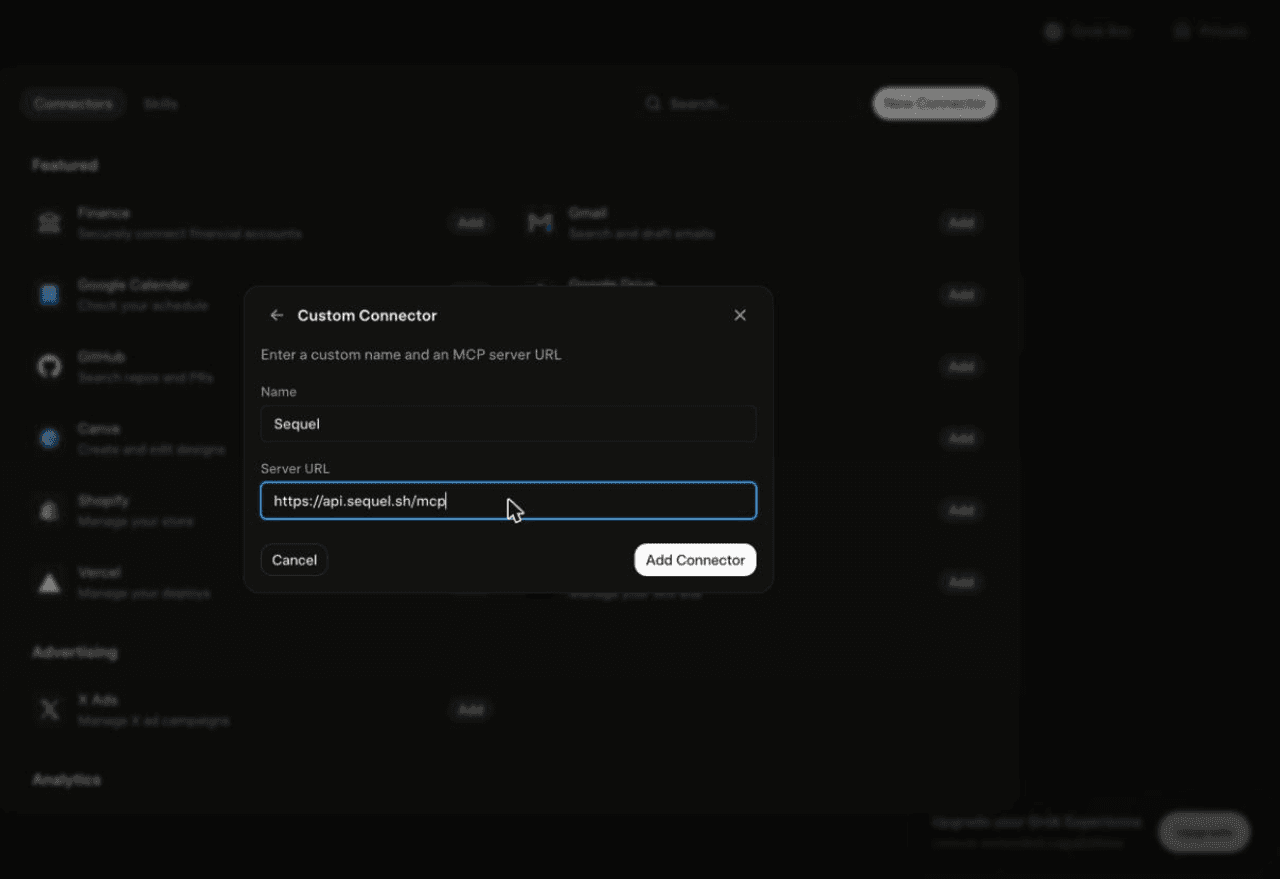
Using Grok chat rather than a bot? The steps do not carry over. On grok.com, open Plugins → New Connector → Custom, set the name to
Sequeland the Server URL tohttps://api.sequel.sh/mcp, click Add Connector, and sign in.
Step 3: Ask Grok Bot About Your Stripe Data
Attach @sequel and ask:
What's our MRR for each of the last 6 months, split by plan?
List customers with a failed payment in the last 14 days that has not been retried.
What's the refund rate by product this quarter versus last quarter?
What You Can Do Now
- Revenue questions without an export: MRR, churn, expansion, and LTV asked in plain English.
- Dunning follow-up: the bot runs unattended, so a daily failed-payment list arrives without anyone remembering.
- Cohort revenue: "What's net revenue retention for customers acquired in Q1?" in one message.
- Dispute and refund monitoring: spot the product driving chargebacks before the rate matters.
- Cross-source joins: match Stripe customers against your database's accounts table to find billing and product drift.
Troubleshooting
| Symptom | Likely fix |
|---|---|
| The bot searched the marketplace instead of adding the server | Resend the message with the words "custom server" in it. |
| The server is not listed under Settings → Plugins → Yours | The registration did not complete. Resend the message and confirm the name and URL when the bot reads them back. |
| The bot answers without touching your data | You did not attach it. Type @ in the chat and pick sequel before asking. |
| A resource comes back empty or errors | The restricted key is not scoped to it. Edit the key in Stripe and set that resource to Read. |
| Numbers look like test data | You used an rk_test_ key. Add a live connection with an rk_live_ key. |
| A write is rejected | Expected. The connector is read-only, and a restricted key enforces that at Stripe. |